Tutorial: Training Octopi Models for 3D CNN Instance Segmentation of Proteins
Estimated time to complete: 20 minutes
Learning Goals
- Generate target volumes that the model will use to predict coordinates.
- Train a new Octopi 3D U-Net model.
- Generate different model configurations using Bayesian optimization (optional).
Introduction
Octopi (Object deteCTion Of ProteIns) is a deep learning framework for cryo-electron tomography (cryoET) 3D particle picking with autonomous model exploration capabilities that allows for efficient identification and extraction of proteins within complex cellular environments. Octopi uses a U-Net architecture with 6 encoder-decoder levels optimized for multi-class particle picking in cryoET. Its deep learning-based pipeline streamlines the training and execution of 3D autoencoder models specifically designed for cryoET particle picking. Octopi is built on copick, a storage-agnostic API, which allows it to easily access tomograms and segmentations across both local and remote environments.
In this tutorial, we will demonstrate how to train new Octopi models to predict 3D protein coordinates. We will illustrate this using Dataset ID: 10440 — a benchmark dataset provided as part of the CZ Imaging Institute Machine Learning Challenge.
This dataset includes six experimental tomgorams annotated with known macromolecular species:
- Apoferritin
- Beta-amylase
- Beta-galactosidase
- Ribosome
- Thyroglobulin
- Virus-like particles (VLP)
Here we will train a model with the "easy" protein complexes (Apoferritin, Ribosome and VLP) to save on compute resources. However, we will include an option for users to learn how to train the model with all complexes.
Prerequisites
python >= 3.9- T4 GPU
Setup
Select the Google Colab T4 GPU runtime option to run this tutorial. At the time of publication Colab was run on Python 3.12.
Installation
Octopi can be installed using PyPI or cloned from the Git repository. After you clone the repository, wait until the dependencies are installed. A popup from Colab may appear and ask you to restart the session. If so, restart the session and run the cell again.
#Install octopi with the repository
#If the "restart" button appears, restart the session and run this cell again.

!git clone https://github.com/chanzuckerberg/octopi.git
%cd octopi
!pip install -e .
%cd ..
Step 1: Generate targets for training
In this step, we will prepare the target data necessary for training our model and predicting the coordinates of proteins within a tomogram.
We will use the copick tool to manage the file system, extract tomogram IDs, and create spherical targets corresponding to the locations of proteins. The key tasks performed in this cell include:
-
Loading Parameters: Defining the size of the target spheres, specify the copick path, voxel size, target file name, and user ID.
-
Generating Targets: For each tomogram, we extract particle coordinates, reset the target volume, generate spherical targets based on these coordinates, and save the target data in OME Zarr format. The equivalent CLI tool for this step if you installed Octopi using pip is:
octopi create-targets --helpNotes for usage:
-
Data Access via copick: Octopi assumes that tomograms and coordinates are accessible through the copick configuration system.
-
Recommended Resolution: Tomograms should ideally be resampled to at least 10 Å per voxel. This reduces memory usage and speeds up training without significantly sacrificing performance. When import data from either MRC formats, or downloading directly from the data-portal we can downsample to the desired resolution with the
--output-voxel-sizeflag.
#Define locations of files and paths

import os, copick

dataset_id = 10440
copick_config_path = os.path.abspath(f'./config_{dataset_id}.json')
overlay_path = os.path.abspath('./tmp_overlay')
copick_root = copick.from_czcdp_datasets(
    [dataset_id], #dataset_id
    overlay_path,
    {'auto_mkdir': True}, #overlay_root, self-defined
    output_path = copick_config_path,
)#Define parameters
from octopi.entry_points.run_create_targets import create_sub_train_targets, create_all_train_targets
# Copick config
config = '/content/config_10440.json'
# Target parameters
target_info = ['targets', 'octopi', '1'] # name, userID, sessionID
# Tomogram query information - This is used to determine the resolution that the targets will be created for.
voxel_size = 10.012
tomogram_algorithm = 'wbp-denoised-denoiset-ctfdeconv'
# For our segmentation target, we can create a sphere with a diameter that is a fraction of the
# particle radius provided in the config file.
radius_scale = 0.7
# Optional: Define A sub-set of tomograms for generating training labels
run_ids = NoneTo generate the segmentation targets, we can use 2 optional functions:
- Option 1: We can provide a subset of pickable objects and (optionally) its
userID/sessionIds. This allows for creating training targets from varying submission sources. - Option 2: Instead of manually specifying each individual pick target by the name (and potentially its
sessionIDand/oruserID), we can find all the pickable objects associated with a single query.
# Option 1: We can provide a subset of pickable objects and (optionally) its userID / sessionIds.
# This allows for creating training targets from varying submission sources.
# Provide inputs as a list of tuples -> [ (name, userID, sessionI)]

pick_targets = [
    ('cytosolic-ribosome', 'data-portal', None),
    ('virus-like-capsid', 'data-portal', None),
    ('ferritin-complex', 'data-portal', None)
]

seg_targets = [] # Either provide this variable as an empty list or populate entries in the same format (name, userID, sessionID)

create_sub_train_targets(
    config, pick_targets, seg_targets, voxel_size, radius_scale, tomogram_algorithm,
    target_info[0], target_info[1], target_info[2], run_ids
)Output:
🔄 Creating Targets for the following objects: cytosolic-ribosome, virus-like-capsid, ferritin-complex
0%| | 0/7 [00:08<?, ?it/s]📝 Annotating 88 picks in 16463...
14%|█▍ | 1/7 [00:24<01:33, 15.62s/it]📝 Annotating 81 picks in 16464...
29%|██▊ | 2/7 [00:34<01:08, 13.69s/it]📝 Annotating 142 picks in 16465...
43%|████▎ | 3/7 [00:46<00:48, 12.15s/it]📝 Annotating 83 picks in 16466...
57%|█████▋ | 4/7 [00:58<00:36, 12.03s/it]📝 Annotating 163 picks in 16467...
71%|███████▏ | 5/7 [01:09<00:24, 12.18s/it]📝 Annotating 148 picks in 16468...
86%|████████▌ | 6/7 [01:20<00:11, 11.52s/it]📝 Annotating 114 picks in 16469...
100%|██████████| 7/7 [01:23<00:00, 11.94s/it]✅ Creation of targets complete!
💾 Saving parameters to /content/tmp_overlay/logs/targets-octopi_1_targets.yaml
============================================================
TARGET VOLUME SUMMARY
============================================================
Segmentation name: targets
Total classes: 4 (including background)
Label Index → Object Name (Type):
0 → background
1 → cytosolic-ribosome (particle, radius=50.0Å)
2 → virus-like-capsid (particle, radius=50.0Å)
3 → ferritin-complex (particle, radius=50.0Å)
============================================================
💡 Use --num-classes 4 when training with this target
============================================================# Option 2: Instead of manually specifying each pickable object, we can provide
# a single query and it will grab the first available coordinate for each
# pickable object.
picks_user_id = 'data-portal'
picks_session_id = None
# In this case, we don't have any organelle segmentations that are at 10 Angstroms on the portal
seg_targets = []
create_all_train_targets(
config, seg_targets, picks_session_id, picks_user_id,
voxel_size, radius_scale, tomogram_algorithm,
target_info[0], target_info[1], target_info[2], run_ids
)Output:
🔄 Creating Targets for the following objects: beta-galactosidase, virus-like-capsid, beta-amylase, membrane, cytosolic-ribosome, thyroglobulin, ferritin-complex
0%| | 0/7 [00:08<?, ?it/s]📝 Annotating 136 picks in 16463...
14%|█▍ | 1/7 [00:19<01:08, 11.43s/it]📝 Annotating 141 picks in 16464...
29%|██▊ | 2/7 [00:30<00:56, 11.33s/it]📝 Annotating 191 picks in 16465...
43%|████▎ | 3/7 [00:42<00:45, 11.42s/it]📝 Annotating 143 picks in 16466...
57%|█████▋ | 4/7 [00:55<00:36, 12.04s/it]📝 Annotating 215 picks in 16467...
71%|███████▏ | 5/7 [01:06<00:23, 11.90s/it]📝 Annotating 221 picks in 16468...
86%|████████▌ | 6/7 [01:18<00:11, 11.92s/it]📝 Annotating 202 picks in 16469...
100%|██████████| 7/7 [01:22<00:00, 11.77s/it]✅ Creation of targets complete!
💾 Saving parameters to /content/tmp_overlay/logs/targets-octopi_1_targets.yaml
============================================================
TARGET VOLUME SUMMARY
============================================================
Segmentation name: targets
Total classes: 8 (including background)
Label Index → Object Name (Type):
0 → background
1 → beta-galactosidase (particle, radius=50.0Å)
2 → virus-like-capsid (particle, radius=50.0Å)
3 → beta-amylase (particle, radius=50.0Å)
4 → membrane (particle, radius=50.0Å)
5 → cytosolic-ribosome (particle, radius=50.0Å)
6 → thyroglobulin (particle, radius=50.0Å)
7 → ferritin-complex (particle, radius=50.0Å)
============================================================
💡 Use --num-classes 8 when training with this target
============================================================Step 2: Prepare the training module
Once our target labels are prepared, we can begin training a deep learning model to identify macromolecular structures in our data.
The training process is modular and configurable. It involves defining a target segmentation volume (prepared in Step 1), preparing 3D tomographic input data, and configuring a U-Net-based segmentation model to predict voxel-level class assignments.
from octopi.datasets import generators
from monai.losses import TverskyLoss
from octopi.workflows import train
import torch, os

########### Input Parameters ###########

# Target parameters
config = "/content/config_10440.json"
target_name = 'targets'
target_user_id = 'octopi'

# DataGenerator parameters
num_crops = 4 # number of crops per batch
tomo_algorithm = 'wbp-denoised-denoiset-ctfdeconv'
voxel_size = 10.012

# Number of epochs to train the model
num_epochs = 50
Next, we instantiate the Octopi data generator, which handles on-the-fly loading of sub-volumes from the full tomograms. This is especially helpful when training on large datasets that cannot fit into memory.
We also define the custom loss and metric functions. Here we use a Weighted Focal Tversky Loss, which is well-suited for class-imbalanced volumetric data, and a multi-class confusion matrix metric to compute recall, precision, and F1 score per class.
# Single-config training
data_generator = generators.TrainLoaderManager(
    config,
    target_name,
    target_user_id = target_user_id,
    tomo_algorithm = tomo_algorithm,
    voxel_size = voxel_size
    )

# Get the data splits
data_generator.get_data_splits(
    train_ratio = 0.9, val_ratio = 0.1
  )
data_generator.get_reload_frequency(num_epochs)

# Monai functions
loss_function = TverskyLoss(
    alpha=0.3, beta=0.7,
    to_onehot_y=True, softmax=True
)Output:
Number of training samples: 6
Number of validation samples: 1
Number of test samples: 0
All training samples fit in memory. No reloading required.Step 3: Train the model
Finally, we initiate model training for a user-defined number of epochs. We recommend training Octopi for 500-1k epochs to ensure all per-particle metrics converge. Validation is run at regular intervals (val_interval), and the best-performing model is tracked based on a specified metric (avg_fBeta by default).
Training results and metadata are saved to disk at the end for future analysis and reproducibility.
Note that, for the purposes of this tutorial, we did not complete full training and only trained the model for 50 epochs. This training code may take an estimated 15 minutes to run.
# Train the model
train(data_generator, loss_function,
num_crops=num_crops, num_epochs=num_epochs)Output:
No Model Configuration Provided, Using Default Configuration
{'architecture': 'Unet', 'num_classes': 8, 'dim_in': 80, 'strides': [2, 2, 1], 'channels': [48, 64, 80, 80], 'dropout': 0.0, 'num_res_units': 1}
🔃 Starting Training...
Saving Training Results to: results/
Loading dataset: 100%|██████████| 6/6 [00:03<00:00, 1.84it/s]
Loading dataset: 100%|██████████| 1/1 [00:00<00:00, 1.90it/s]
Training on GPU: cuda: 18%|█▊ | 9/50 [02:43<11:14, 16.44s/epoch]
Epoch 10/50, avg_train_loss: 0.8753
Training on GPU: cuda: 18%|█▊ | 9/50 [02:57<11:14, 16.44s/epoch]
Epoch 10/50, avg_f1_score: 0.0070, avg_recall: nan, avg_precision: 0.0051
Training on GPU: cuda: 38%|███▊ | 19/50 [05:43<08:31, 16.49s/epoch]
Epoch 20/50, avg_train_loss: 0.8650
Training on GPU: cuda: 38%|███▊ | 19/50 [05:56<08:31, 16.49s/epoch]
Epoch 20/50, avg_f1_score: 0.0108, avg_recall: nan, avg_precision: 0.0060
Training on GPU: cuda: 58%|█████▊ | 29/50 [08:43<05:51, 16.75s/epoch]
Epoch 30/50, avg_train_loss: 0.8412
Training on GPU: cuda: 58%|█████▊ | 29/50 [08:57<05:51, 16.75s/epoch]
Epoch 30/50, avg_f1_score: nan, avg_recall: nan, avg_precision: nan
Training on GPU: cuda: 78%|███████▊ | 39/50 [11:44<03:04, 16.75s/epoch]
Epoch 40/50, avg_train_loss: 0.8322
Training on GPU: cuda: 78%|███████▊ | 39/50 [11:57<03:04, 16.75s/epoch]
Epoch 40/50, avg_f1_score: nan, avg_recall: nan, avg_precision: nan
Training on GPU: cuda: 98%|█████████▊| 49/50 [14:42<00:16, 16.48s/epoch]
Epoch 50/50, avg_train_loss: 0.8257
Training on GPU: cuda: 98%|█████████▊| 49/50 [14:56<00:16, 16.48s/epoch]
Epoch 50/50, avg_f1_score: nan, avg_recall: nan, avg_precision: nan
Training on GPU: cuda: 100%|██████████| 50/50 [14:57<00:00, 17.95s/epoch]
✅ Training Complete!
💾 Saving Training Parameters and Results to: results/
⚙️ Training Parameters saved to results/model_config.yaml
📊 Training Results saved to results/results.csv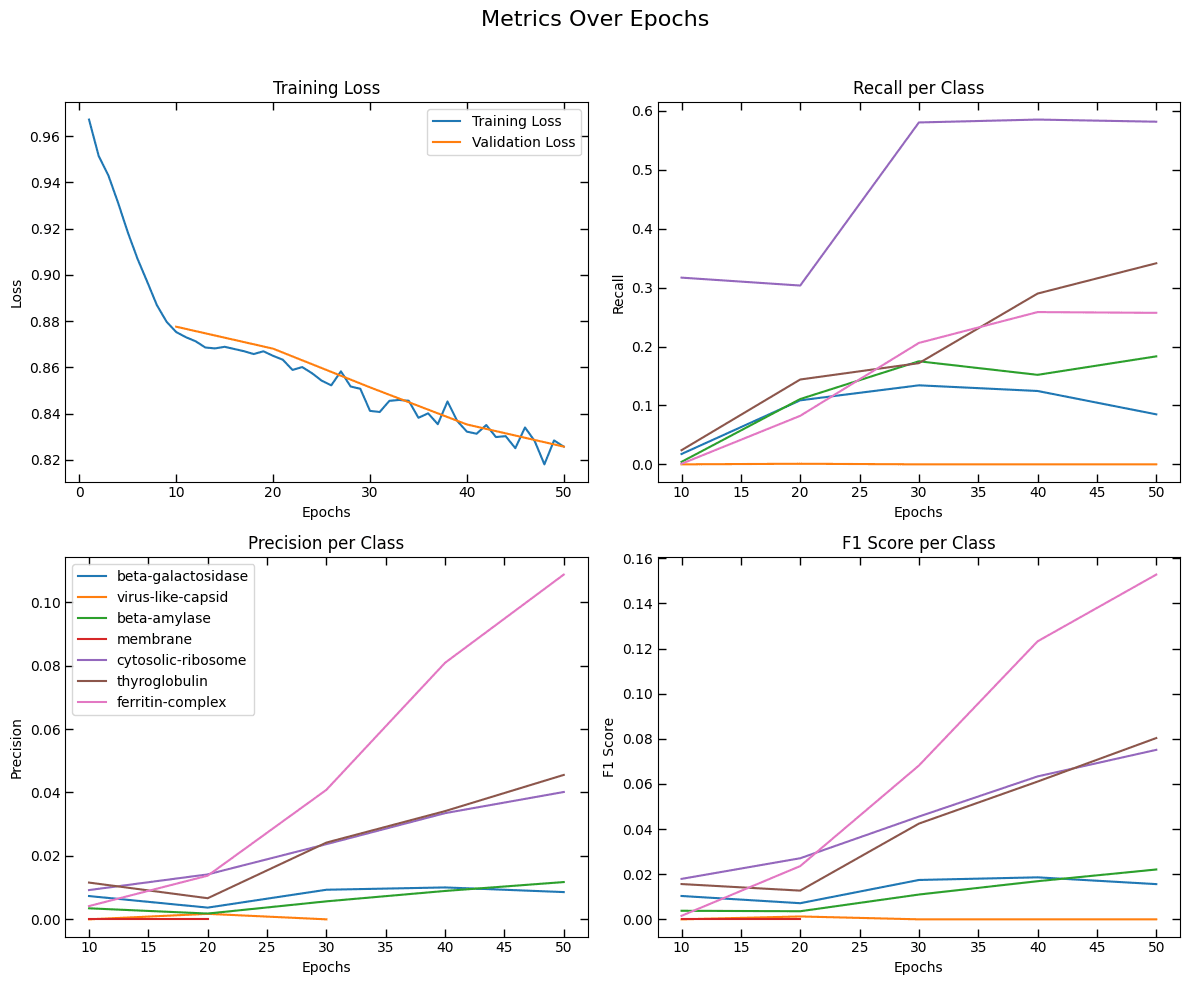
(Optional): Use Optuna / Bayesian Optimization for Automatic Network Exploration
In this optional step, we use Optuna, a Bayesian optimization framework, to automatically explore different network architectures and training hyperparameters. This process helps identify high-performing configurations without the need for exhaustive manual tuning.
By leveraging intelligent sampling strategies, Optuna can efficiently search through:
- Network depth and width (e.g., number of layers, channels)
- Learning rates, dropout rates, and other optimization parameters
- Loss function weights (e.g., Focal vs Tversky balance)
- Data sampling or augmentation strategies
This automated search is especially useful when working with new biological targets with unknown optimal network setups.
To run the model search outside this notebook, you can use the CLI:
octopi model-explore --helpNote: Running a Bayesian optimization model exploration job can take >12 hours to complete, so we recommend running this utility off of a Colab environment. Refer to the documentation to learn more about this feature.
Summary
In this tutorial, we learned how to generate targets for training a new Octopi model, configured the training process and the model settings, and trained the model on our selected complexes. In addition, we used Optuna to identify the most optimal model configurations using Bayesian optimization.
Ready to start using the model? See our quickstart to learn how use a trained Octopi model.
Contact and Acknowledgments
For issues with this notebook please contact jonathan.schwartz@czii.org.
References
- Octopi documentation
- Preprint: A Machine Learning Challenge for the Instance Segmentation of Proteins in Cryo-ET
Responsible Use
We are committed to advancing the responsible development and use of artificial intelligence. Please follow our Acceptable Use Policy when engaging with our services.
Should you have any security or privacy issues or questions related to the services, please reach out to our team at security@chanzuckerberg.com or privacy@chanzuckerberg.com respectively.